- Ticket #478596 - Get Files on Mac Cannot Upload Multiple Files & Overwrite Existing Files, Problem Description: When using the Get Files button to upload multiple files AND overwrite existing files already in the Class Files area, Blackboard does not give the option to "Replace Existing" files. Instead the filename appears as "Null" and Blackboard offers only these options: "Select another location," "Rename," and "Skip." Resolution: This issue is scheduled to be resolved with the release of Vista 8 SP1. This release date is scheduled for the early July timeframe.
- Ticket #483277 - Cannot Save Email Attachment to Local Workstation. Resolution, per Blackboard Staff: This issue is resolved Vista 8. I have completed my testing within our Vista 8 test environment and was unable to reproduce the issue.
Note regarding version 8: The CE/Vista 8.0 product does not contain “new” functionality; instead it can be viewed more as Service Pack 4 for Application Pack 2, so essentially Vista 4.2.4/CE6.2.4. The main purpose of the CE/Vista 8.0 release is to align the numbering conventions of the Blackboard and CE/Vista product lines. The only change is that the Learning Environment Connector (providing CE/Vista clients with access to the Blackboard Community, Content and Outcomes Systems) is now built directly in to the product. However, if your institution does not chose to utilize these products then you will not notice any changes to the application only further stability and additional maintenance fixes for product defects. - Ticket #442776 - Moving Custom Icons Causes Edited Text Links to Revert to Original Names. Resolution: This issue has been slated for resolution in Vista 8.0 SP1. The release is scheduled for June/July timeframe. Once a final release date has been scheduled, I will either update the case notes or provide results from internal testings.
- Ticket #443689 - Web Links Do Not Import When Importing a Learning Module. Resolution: I just completed testing this issue in our 4.2.3 and Vista 8.0 environment and it's still an issue. I will escalate this up to our developers and track the progress. Once we receive a resolution I will update the case.
- Ticket #435137 - My Blackboard Course Listings not in Alpha Order. Resolution: This case has been escalated to our developers. Once a resolution has been released, we will update the case with any recommendations from our developers.
- Ticket #467838 - Need Clarity in Naming Cross-Listed Courses. The default naming of cross-listed courses is confusing to instructors, designers and students. When a course is cross-listed the names of the original courses (child courses) do not appear as part of the new name (parent course shell). Instead the instructor and designer see a name like “Cross-Listed Group 599” on their My Blackboard screen. The student sees the same non-descript course name when they enter a cross-listed course. We use Respondus extensively to create an then publish assessments into Blackboard CE. The list of courses displayed by Respondus includes both the parent and the child course shell names. Since you can publish to a child course shell and NOT have it appear in the parent course, this just adds to the confusion. Resolution: None.
- Ticket #458823 - Need Ability to Edit Assignment Drop Box Comments After They're Posted. When grading an Assignment in the Assignment Drop Box Comments text box, there's no access the HTML Creator (with a spellchecker) and once the comment is posted, there's no way to edit that comment (e.g. correct a spelling error). Resolution: Blackboard support staff submitted a feature request for this issue.
- Ticket #458825 - Confirmation Needed Before File Attachment Deleted in Assignments Tool. An instructor accidentally deleted an attachment from an assignment in Blackboard by clicking the little icon next to the attachment. She thought it was an ActionLink icon. That icon deletes the attachment WITHOUT A CONFIRMATION BOX. We’ve duplicated the event. Worse, in this case the instructor did not have a copy of the file anywhere else. She assumed a copy was put into her Class Files area (accessible using the File Manager), but that is not the case (We confirmed that as well). Resolution: New feature request that assignment attachments be placed automatically in the Class Files area AND that a warning with an exit option appear before the attachment is permanently deleted.
- Ticket #446216 - Teaching Assistant/Section Designers Cannot Add Public Calendar Entries. In versions prior to CE 6.1.1 staff who were enrolled in a course as both Section Designers and Teaching Assistants could add public calendar entries to the course calendar. That functionality has been reduced so individuals using that dual role can now only add private calendar entries. See attached screen capture which shows only one radio button under Entry Option. Resolution: Blackboard support wrote “I am going to submit this as an enhancement request. Let me know if you have any questions.”
- Ticket #478596 - Get Files on Mac Cannot Upload Multiple Files & Overwrite Existing Files, Resolution: None yet.
- Ticket #479817 - Answers not saving during quiz/test. Students are taking an online quiz/test and when clicking the "Save Answer" button the question is not saved. This appears to be a random event as sometimes the answers are saved and other times the server is slow or does not save the answer. Students taking a timed test are not able to complete the test/quiz in the allotted time due to this issue.Resolution: This issue is scheduled to be resolved with the release of Vista 8 SP1. This release date is scheduled for early July timeframe.
- Ticket #448922 - When Saving Backup as File, Doesn't Default to Current Class Files Folder. If you don't carefully check where the file is being saved (when saving backup as a file), you may lose the backup file in a Class Files folder completely separate from the course you're in. Then, should you attempt to save a file to the course you are in, you may have a list of the bazillion courses to which you have access. Resolution: response from Blackboard support “Thank you for taking the time to submit an enhancement request to Blackboard Product Development. The suggestions we receive from you, your faculty members and students are extremely valuable, as they come from people who use our products on a daily basis. Your request has been thoroughly evaluated; at this time Blackboard does not have any plans to dedicate resources to develop this enhancement in a future release of our products. While this specific case will be closed, Blackboard is dedicated to working with you to leverage existing functionality for your needs. Our Building Block partners may be working on resolutions to your issue, and you can also work with the Blackboard Global Services team to request the development of a customization that would address your concerns. If you have any questions regarding these suggestions, please contact your Blackboard Account Manager. Again, thank you for your input. We may make statements regarding our product development initiatives, including the content of future product upgrades, updates or functionality in development. While such statements represent our current intentions, the product development initiatives may be modified, delayed or abandoned without prior notice and there is no assurance that such upgrades, updates or functionality will become available unless and until they have been made generally available through a commercial release.
- Ticket #515267 - Assessments (Not Released to Students) Still Have Link to Results. Faculty member created practice quizzes and doesn’t want to release the grades to students. He set the assessment properties so the results would not be released to students. However, after taking the exam, students can go to the View All submissions page and while they “shouldn’t” be able to click to see submissions, it is a clickable link that goes to a screen that says “error: Sorry, this action cannot be executed.” If they try to view the submission by going to the already taken exam first then they can’t click on the title to see the submission, which is the way it should work. Resolution: Fixed in CE 6.2.2. JCCC testing indicates the problem has been corrected.
- Ticket #458818 - Chat Invitation Window displays Incorrect Course Name. When you send an invitation in the Who’s online tool it shows the course that the person is in but the course title displays wrong. Resolution: This issue has been identified as a bug within our application. Our developers are currently investigating the source of this issue. Once I receive feedback as to a workaround or fix, I will update the case.
Showing posts with label Assessment. Show all posts
Showing posts with label Assessment. Show all posts
Monday, August 18, 2008
Blackboard Issues: Status Report
It might be helpful for you to know the status of several Blackboard issues reported by JCCC staff over the past several months. This should alert you to the fact that most of these issues are not yet fully resolved. While some of these issues are supposed to be resolved in version 8 of Campus Edition, we're still on Version 6.2.3 and we have no plans to upgrade at this time.


Monday, March 24, 2008
After Service Pack 3
Official issues fixed with Service Pack 3 (SP3) include:
- Installation issues to adopt Application Pack 2 have been resolved
- Garbage collection has become more robust
- Known issues in cross-listing have been eliminated
- Assessment and question component have been stabilized
- Installer related issues have been resolved
- Safari 3.0 compatibility issue has been fixed
- Issue with "new" messages feature of Discussion Board have been resolved
- An important security issue has been fixed
In bold are the issues that directly affect students and instructors. We installed Service Pack 3 on the JCCC Blackboard production server on Monday, March 15.
Keep in mind that one bug still persists and may be important as you copy course content from Spring 2008 to Summer or Fall 2008 course shells. Courses with group sign-up sheets on the homepage cause the copy process to abort. After looking at this issue in detail it appears the only workaround is to delete all group sign-up sheets before copying course content (the problem persists even if you place the sign-up sheet in a folder ). After copying the course content, then go back and add the group sign-up sheets back into the course.
Thursday, January 31, 2008
CE 6.2.2 Bug Updates
The following bugs were reported to Blackboard Support over the past several months and then were referred to the Blackboard Development staff. FYI, the case number, description and latest response from Blackboard support is listed below.
#479817 - Answers not saving during quiz/test.
Case Description: Students are taking an online quiz/test and when clicking the "Save Answer" button the question is not saved. This appears to be a random event as sometimes the answers are saved and other times the server is slow or does not save the answer. Students taking a timed test are not able to complete the test/quiz in the allotted time due to this issue.
Support Response: Our developers have deemed this to be a bug within the software. The fix for this issue is tentatively scheduled for Vista 8.0 SP1. If changes are made to the schedule, I will update the case.
JCCC Note: I have requested information on when Vista 8 SP1 will be released. We’re on Campus Edition 6.2.2 which is equal to Vista 4.2, so I’m not sure how their numbering system for future releases works.
#406008 - Course Tools Menu Automatically Collapses to Just Icons
Case Description: Based on release notes, the Course Tools menu bar should not collapse to just icons when opening the Mail tool or Learning Modules tool, but that’s not the case. The menu collapses when using the Mail, My Files, Grade Book, and File Manager tools.
Support Response: After reviewing the CR which was submitted for this issue, I noticed DEV actually rejected the Change Request. They have stated this issue will be addressed possibly in a future release. Which also can mean, it may get lost in obscurity. Let me know how you would like to proceed with this case.
#476514 - Calendar Changes After Upgrade to CE 6.2.1
Case Description: 1. It’s common for our faculty to copy a course from a previous course shell and then want to move the calendar entries to new dates in the new course. When you change the date for a Calendar entry (by simply modifying the date), the screen refreshes and brings you back to "today's date" (such as the 14th if today's the 14th of August) but in the month from which you came (e.g. the month in which the original date entry occurred before you edited it), but not on the specific date of the original entry you edited. So, if you’ve got three items on January 18th and you want to move them to August 16th (and today is August 14th), each time you change the date of an item on January 18th Blackboard “leaves“ you back on January 14, rather than on the 18th. If you’re moving an item from February 20 to September 25th, after the change you’ll end up on February 14th (if today is August 14th). This is a change in behavior since CE 6.1.1.2. New Calendar entries default to today’s date no matter what you do. If you move to a date in November and try to add a Calendar entry on November 2nd, the default date will be today’s date, not the date you selected in November. You can change it each time, but there’s no sense in navigating to the new month and date, since you’ll need to set the date each time you add an entry.3. If you try to set a time for an event (entry in calendar or assignment or assessment due date) after 10:59 PM on November 4, Blackboard changes the time to an hour earlier. This is the date that Daylight Savings time ends in the Fall of 2007. If you type in a time (like 11:00 PM) or use the drop down menu to choose a time, it may appear correct until you save it, then the time is set back without warning to 10:00 PM. This anomaly only occurs on November 4. If you don’t expect this, you can be frustrated and waste a lot of time trying to figure it out.
Support Response: Our developers have stated the calendar is functioning as designed. When adding a new entry, the start date will show the current day's date. You would have to change the date to required date for the event.
#478596 - Get Files on Mac Cannot Upload Multiple Files & Overwrite Existing Files
Case Description: When using the Get Files button to upload multiple files AND overwrite existing files already in the Class Files area, Blackboard does not give the option to "Replace Existing" files. Instead the filename appears as "Null" and Blackboard offers only these options: "Select another location," "Rename," and "Skip."
Support Response: This is issue is tentatively scheduled for resolution with the release of Vista 8.0 SP1. If any changes occur from our side, I will update the case.
JCCC Note: Subsequently we reported that this same problem happens with Windows users.
#478109 - Inconsistent Discussions Tool New Activity Icon Behavior
Case Description: New Activity icon appears when no postings occur and when a new topic is added (with a description of two words or more or when a period is added to the end of one word descriptions) even when the topic has no postings. This makes it very difficult for instructors and students to use the Discussions topic New Activity icon as an alert that new postings are present for the student to read.
Support Response: No updates have been posted by our developers. Once I receive feedback, I will update the case.
#479657 - No Web Folder option for Firefox
Case Description: When using Firefox 2 you no longer get the “Open as Web Folder” option from the File Manager ActionLink. See attached screen capture.
Support Response: As of right now, DEV has not provided any updates on this issue. Once I receive an additional information I will update the case notes.
#479817 - Answers not saving during quiz/test.
Case Description: Students are taking an online quiz/test and when clicking the "Save Answer" button the question is not saved. This appears to be a random event as sometimes the answers are saved and other times the server is slow or does not save the answer. Students taking a timed test are not able to complete the test/quiz in the allotted time due to this issue.
Support Response: Our developers have deemed this to be a bug within the software. The fix for this issue is tentatively scheduled for Vista 8.0 SP1. If changes are made to the schedule, I will update the case.
JCCC Note: I have requested information on when Vista 8 SP1 will be released. We’re on Campus Edition 6.2.2 which is equal to Vista 4.2, so I’m not sure how their numbering system for future releases works.
#406008 - Course Tools Menu Automatically Collapses to Just Icons
Case Description: Based on release notes, the Course Tools menu bar should not collapse to just icons when opening the Mail tool or Learning Modules tool, but that’s not the case. The menu collapses when using the Mail, My Files, Grade Book, and File Manager tools.
Support Response: After reviewing the CR which was submitted for this issue, I noticed DEV actually rejected the Change Request. They have stated this issue will be addressed possibly in a future release. Which also can mean, it may get lost in obscurity. Let me know how you would like to proceed with this case.
#476514 - Calendar Changes After Upgrade to CE 6.2.1
Case Description: 1. It’s common for our faculty to copy a course from a previous course shell and then want to move the calendar entries to new dates in the new course. When you change the date for a Calendar entry (by simply modifying the date), the screen refreshes and brings you back to "today's date" (such as the 14th if today's the 14th of August) but in the month from which you came (e.g. the month in which the original date entry occurred before you edited it), but not on the specific date of the original entry you edited. So, if you’ve got three items on January 18th and you want to move them to August 16th (and today is August 14th), each time you change the date of an item on January 18th Blackboard “leaves“ you back on January 14, rather than on the 18th. If you’re moving an item from February 20 to September 25th, after the change you’ll end up on February 14th (if today is August 14th). This is a change in behavior since CE 6.1.1.2. New Calendar entries default to today’s date no matter what you do. If you move to a date in November and try to add a Calendar entry on November 2nd, the default date will be today’s date, not the date you selected in November. You can change it each time, but there’s no sense in navigating to the new month and date, since you’ll need to set the date each time you add an entry.3. If you try to set a time for an event (entry in calendar or assignment or assessment due date) after 10:59 PM on November 4, Blackboard changes the time to an hour earlier. This is the date that Daylight Savings time ends in the Fall of 2007. If you type in a time (like 11:00 PM) or use the drop down menu to choose a time, it may appear correct until you save it, then the time is set back without warning to 10:00 PM. This anomaly only occurs on November 4. If you don’t expect this, you can be frustrated and waste a lot of time trying to figure it out.
Support Response: Our developers have stated the calendar is functioning as designed. When adding a new entry, the start date will show the current day's date. You would have to change the date to required date for the event.
#478596 - Get Files on Mac Cannot Upload Multiple Files & Overwrite Existing Files
Case Description: When using the Get Files button to upload multiple files AND overwrite existing files already in the Class Files area, Blackboard does not give the option to "Replace Existing" files. Instead the filename appears as "Null" and Blackboard offers only these options: "Select another location," "Rename," and "Skip."
Support Response: This is issue is tentatively scheduled for resolution with the release of Vista 8.0 SP1. If any changes occur from our side, I will update the case.
JCCC Note: Subsequently we reported that this same problem happens with Windows users.
#478109 - Inconsistent Discussions Tool New Activity Icon Behavior
Case Description: New Activity icon appears when no postings occur and when a new topic is added (with a description of two words or more or when a period is added to the end of one word descriptions) even when the topic has no postings. This makes it very difficult for instructors and students to use the Discussions topic New Activity icon as an alert that new postings are present for the student to read.
Support Response: No updates have been posted by our developers. Once I receive feedback, I will update the case.
#479657 - No Web Folder option for Firefox
Case Description: When using Firefox 2 you no longer get the “Open as Web Folder” option from the File Manager ActionLink. See attached screen capture.
Support Response: As of right now, DEV has not provided any updates on this issue. Once I receive an additional information I will update the case notes.
Wednesday, January 30, 2008
Changing the Orientation of Multiple Choice Questions
We've again had some cases where the orientation of multiple choice questions is horizontal by default rather than vertical. This sometimes occurs when questions are imported from publisher test banks. Unfortunately, if no orientation is indicated in the imported text bank, Blackboard defaults to a horizontal rather than the expected vertical orientation for the answers (detractors).
The layout of the answers to multiple-choice questions can be set or changed by the instructor, but this is accomplished on a question by question basis and not globally. What this means is that while the layout of the answers can be changed, it will have to be changed one question at a time.
The process includes these steps:
The layout of the answers to multiple-choice questions can be set or changed by the instructor, but this is accomplished on a question by question basis and not globally. What this means is that while the layout of the answers can be changed, it will have to be changed one question at a time.
The process includes these steps:
- Select the Build tab.
- Select the Assessments tool.
- Click the link for an assessment.
- Click the link for a specific question.
- Scroll to the bottom of the page.
- In the Settings section, next to Answer layout:, click the option labeled Vertical.
- Click Save.
- Repeat 4-7 as needed.
Thanks to Saul Epstein for this tip.
Wednesday, January 23, 2008
Assessments with Random Questions
To create an assessment in Blackboard that randomly selects a number of questions to administer from a larger question pool, you must set up a Question Set. For instance, say you want each student to receive a different set of 20 questions, selected randomly from a pool of 50 questions. You might want to do this in order to make cheating more difficult, or you might want students to use this feature as a self-test option. Either way, the solution is to use a Question Set when you FIRST set up the assessment.
Begin with a blank assessment. Choose Add to Assessment > Question Set. Select the questions you would like to be in the question pool and click Add Selected at the bottom of the screen. Now choose how many questions you want to appear on the test using the Select drop-down box at the top of the screen. Fill in how many points each question will be worth. Scroll down to the bottom of the screen and click on the Update Total button. Be sure that the new total is correct. For instance, in our example you would choose 20 in the Select drop-down box. If you then chose 5 points for each question and clicked Update Total, the new total should be 100 points. If you want to add more questions to the pool later, use the Add Question Alternates button at the bottom of the screen.
If you already have questions in an assessment, you will need to remove them and then add them back using the Question Set feature.
Thanks to Tracy Newman for this tip.
Begin with a blank assessment. Choose Add to Assessment > Question Set. Select the questions you would like to be in the question pool and click Add Selected at the bottom of the screen. Now choose how many questions you want to appear on the test using the Select drop-down box at the top of the screen. Fill in how many points each question will be worth. Scroll down to the bottom of the screen and click on the Update Total button. Be sure that the new total is correct. For instance, in our example you would choose 20 in the Select drop-down box. If you then chose 5 points for each question and clicked Update Total, the new total should be 100 points. If you want to add more questions to the pool later, use the Add Question Alternates button at the bottom of the screen.
If you already have questions in an assessment, you will need to remove them and then add them back using the Question Set feature.
Thanks to Tracy Newman for this tip.
Thursday, November 08, 2007
If Students Report Assignment or Assessment Time Changes
The following is (partially) old news, but it may impact assignments and assessments submitted recently by your students IF the start date, end date, due date or cutoff date was on Sunday, November 4, 2007 AND you modified the assessment or assignment in any way. Just FYI, from Blackboard Support:
Blackboard has identified an issue which causes the start and end dates of assessments and the due and cutoff dates of assignments to count back one hour each time a Section Designer adjusts any settings in that assessment or assignment. This issue only affects assessments and assignments that have a start, end, due date or cutoff date of Sunday, November 4, 2007. For instance, if the assessment (or assignment) is set to end at 8:03 PM and the Section Designer makes any adjustments resulting in pressing the "save" button, the new end time for the assessment will roll back to 7:03 PM. Saving the same assessment one more time will result in the end time changing again to 6:03 PM. In rare instances, the date may also flip back.
This affects all systems using CE 6.2, CE 6.2.1, CE 6.2.2, Vista 4.2, Vista 4.2.1 and Vista 4.2.2 with a Time Zone setting inside the United States, including Indiana (East). This only affects Sections with an assessment or assignment using the date of November 04, 2007, March 9, 2008, and November 2, 2008 (or any date where the time changes due to DST). Times in March will roll forward one hour with each save. Times in November will roll back one hour with each save. This issue does not affect any other dates.
Blackboard is currently investigating this issue. A fix for this issue will be included in a future release and we hope to have this available prior to March 9, 2008, the next scheduled occurrence of Daylight Savings Time. In the meantime, we suggest that Blackboard system administrators inform their users of this issue and, in the event an assessment or assignment needs to be edited, the user increment the time for the November 04, 2007 element by one hour before saving so that the desired time is reflected when it is saved. If you have further questions or concerns please contact Blackboard Client Support.
Blackboard has identified an issue which causes the start and end dates of assessments and the due and cutoff dates of assignments to count back one hour each time a Section Designer adjusts any settings in that assessment or assignment. This issue only affects assessments and assignments that have a start, end, due date or cutoff date of Sunday, November 4, 2007. For instance, if the assessment (or assignment) is set to end at 8:03 PM and the Section Designer makes any adjustments resulting in pressing the "save" button, the new end time for the assessment will roll back to 7:03 PM. Saving the same assessment one more time will result in the end time changing again to 6:03 PM. In rare instances, the date may also flip back.
This affects all systems using CE 6.2, CE 6.2.1, CE 6.2.2, Vista 4.2, Vista 4.2.1 and Vista 4.2.2 with a Time Zone setting inside the United States, including Indiana (East). This only affects Sections with an assessment or assignment using the date of November 04, 2007, March 9, 2008, and November 2, 2008 (or any date where the time changes due to DST). Times in March will roll forward one hour with each save. Times in November will roll back one hour with each save. This issue does not affect any other dates.
Blackboard is currently investigating this issue. A fix for this issue will be included in a future release and we hope to have this available prior to March 9, 2008, the next scheduled occurrence of Daylight Savings Time. In the meantime, we suggest that Blackboard system administrators inform their users of this issue and, in the event an assessment or assignment needs to be edited, the user increment the time for the November 04, 2007 element by one hour before saving so that the desired time is reflected when it is saved. If you have further questions or concerns please contact Blackboard Client Support.
Tuesday, October 30, 2007
Changes After Service Pack 2 installed
JCCC installed Service Pack 2 recently (Mid-October) and here is a summary of some findings:
- The icons on the My Blackboard screen meant to alert the student/faculty member when there is something “new” do not consistently work in Service Pack 2 (SP2). Within the course itself, New Activity icons (the green asterisk) do not consistently identify when new postings appear. For instance, if you copy content from one course shell to another and then check the Discussions and Assignments tools, both with be marked with the New Activity icon even before any students enter the course. In Discussions the icon seems to appear if the instructor has used the topic description even if initial postings have not been entered. The only way to get rid of the New Activity icon is to open each discussion topic (even if nothing is posted) and then click the Teach tab (or Student View tab), which refreshes the screen. The same erroneous New Activity icons appear in the Assignments tool.
- Descriptions for the Course Content Home Page icons that use special characters (semi-colons, ampersands, colons and pound signs) now display properly (text following any of the special characters is no longer truncated).
- Descriptions for Learning Modules can now include special characters (semi-colons, ampersands, colons and pound signs) in their descriptions and the text displays properly (text following any of the special characters is no longer truncated).
- SP2 fixed the problem generated when an instructor/designer accessed the Student View in Blackboard which generated an "unexpected system exception error" if student access to the course had not yet been enabled.
- However, when instructors/designers access the Student View, they may see instructor/designer tools and not just student tools and options. Further, the Assignments, Who’s Online and Assessments tools when accessed on the Student View tab, may display an “unexpected system exception error.”
- Icon descriptions on the Course Content Home Page (Build tab) when using Internet Explorer are no longer rendered one word per line.
Thursday, October 25, 2007
When the Blackboard Assessment Window Freezes
We’ve had several instances where students have reported that in the middle of taking an assessment, the Assessment tool freezes. When this occurs, the Blackboard screen blanks out or the student clicks the Save button (to save an answer) but the Question Status doesn’t changed to Answered or the assessment just freezes. While we’ve reported this to Blackboard, it’s extremely difficult to replicate. One suggestion is to alert your students that if this behavior occurs, they can right-click in the Assessment window (the window that includes the question on the left and the question status on the right) and then select Refresh from the drop-down menu that appears. This may help so they can complete the assessment.
Thursday, August 30, 2007
Resetting an Assessment for a Student
If you need to reset an assessment for a student (for whatever reason), here are the steps to follow:
- Open the course, go to the Teach tab and select the Assessment Manager tool.
- Select the Not Submitted tab or All tab (not the Graded or Not Graded tab).
- Select the assessment link you want to reset.
- Scroll down to find the student’s name.
- Click the ActionLink that follows the name and from the pop-up menu select the Reset Entire Submission option.
- When prompted to “Reset this submission?” click OK. Your student can now re-take the assessment (so long as it is still during the time period when students have access to the assessment—based on settings you established for the test).
Friday, June 08, 2007
Current List of Blackboard CE 6.1.1 Bugs
Periodically I try to alert you to problems we’ve encountered with Blackboard CE so you’ll know it’s the system and not user error. This list is not complete but at least covers most of the more common and problematic issues we have open with Blackboard Support. By the way, for JCCC faculty members, if you have major issues not listed here, please alert your Ed Tech Center Designer.
We have experienced:
We have experienced:
- Cases where course content from one semester fails to copy successfully to the next semester’s course shell.
- Unexpected System Exception errors that occur for a variety of reasons (opening a course, switching between tabs, and so on), none of which are clearly indicated in the server logs or displayed on the screen for the user’s benefit.
- Problems for end users with:
a. multiple versions of Java installed,
b. recent versions of Java installed (you should be using version 1.5 with updates 6 or 7 installed, but not Java 1.6)
c. Internet Explorer 7 or latest version of Mac Safari installed
d. Windows Vista installed. - Search tool failures with incorrect or no results reported.
- Failure of the Banner XML file to import Summer Non-Credit Courses.
- Failure of the garbage collection routines to work so the database gets more and more bloated, which we believe contributes to slower access times.
- Failure of the Media Library/Glossary tool if a single image is attached to an entry in one of the tool’s collections.
- Crash with an exception error if a Learning Module has more than 20 headings or entries included.
- Lose of embedded images in assessments when the assessment is exported and then imported into another course shell.
- Calendar tool entries entered by an instructor for a specific course being displayed as institutional entries in all courses; which is very confusing for students.
- A limit on the number of characters allowed (1333) when an instructor grades and adds comments to an assignment.
- Failure of the mail forwarding feature to work when a student or an instructor wants email received in Blackboard CE to be forwarded to their external email accounts.
- Confusion when the Submitted and Not Submitted tabs in the Assignment tool show the reverse information.
- WebLinks that do not import when a Learning Module is exported and then imported into another course shell.
- Course names that are truncated (so as to be indecipherable) or are not in alphabetical order throughout the application (e.g. when setting calendar dates, publishing content from Respondus, importing or copying content from another course and when setting the order of courses displayed or hidden on the My Blackboard screen).
- No ability for the instructor to edit Assignment Drop Box comments posted for students after they are posted.
We know there are many more bugs, we currently have about 70 cases open with Blackboard support, but these seem to be the major items that effect students and instructors.
Friday, February 23, 2007
Difference Between Assessment Custom Instructions & the Description
In Blackboard CE’s Assessment tool, you can create both “custom instructions” and an assessment “description.”
Blackboard CE’s “Custom Instructions” may be different than you initially expect. It’s easy to expect “Custom Instructions” to show up on the Assessments page before students begin assessments. The fact is, “Custom Instructions” don’t appear until the assessment is started.
In order for notes or instructions regarding the assessment to show before the assessment is begun (on the Assessments page) enter them using the “Description” field (near the top of the assessment properties page) rather than the “Custom Instructions” field (at the bottom of the assessment properties page). Assessment properties are accessed by clicking the ActionLink icon and then selecting the Edit Properties option.
“Custom Instructions” appear inside the assessment (accented in green).
Blackboard CE’s “Custom Instructions” may be different than you initially expect. It’s easy to expect “Custom Instructions” to show up on the Assessments page before students begin assessments. The fact is, “Custom Instructions” don’t appear until the assessment is started.
In order for notes or instructions regarding the assessment to show before the assessment is begun (on the Assessments page) enter them using the “Description” field (near the top of the assessment properties page) rather than the “Custom Instructions” field (at the bottom of the assessment properties page). Assessment properties are accessed by clicking the ActionLink icon and then selecting the Edit Properties option.
“Custom Instructions” appear inside the assessment (accented in green).

The description appears on the Assessments page, outside the assessment or before the assessment is begun.
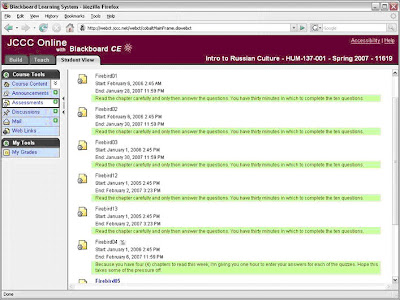
To enter either a Description or Custom Instructions select the Edit Properties option using the ActionLink icon.
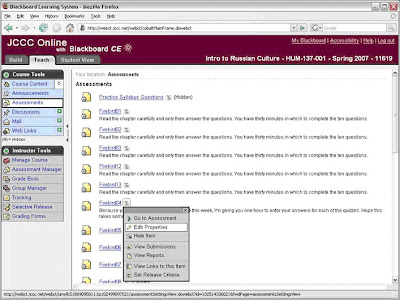
The Description field is near the top and the Custom Instructions section is near the bottom.


Thanks to Davy Jones, Senior Analyst in the Educational Technology Center for this tip.
Tuesday, February 20, 2007
Changing an Answer After an Assessment Has Been Administered
Let’s suppose that you have a fill-in-the-blank question in an assessment where you’ve indicated the correct answer is “criteria.” After some students have taken the assessment, you realize that “criterion” is also a valid answer. While it should be used cautiously, you can change the answers to a question (in this case add a correct answer). The process is anything but intuitive and requires these steps:
- On the Build tab, select the Assessment tool and locate the specific question.
- Select the question and the Edit…Question screen appears (you get to the same screen when you locate the quiz, display the questions, click the ActionLinks icon folloiwng the question and from the pop-up menu select Edit This Question).
- When the Edit…Question screen appears, change the title of the question; make it a minor change if you wish, such as adding a period (.) to the end of the title.
- Next add the new correct answer (if you change the correct answer from one choice to another, be prepared to tell students who lost points as well as alert those who earned points as a result of the change).
- Click the Save button to save the revised question.
- You’ll see a warning message indicating that you’re about to “overwrite the original question and could change Student grades.” Click OK if this is what you intend to do. In essence, you’re using a different question name and the revised question will replace the original question in the assessment.
- Next, select the Teach tab and go to the Grade Book.
- Select the ActionLink for the assessment that needs to be re-graded. It’s at the top of the column.
- From the ActionLink pop-up menu, select the View Submissions option. You can get to the same place if you go to the Assessment Manager, select the ActionLink behind the assessment name and then select the View Submissions option). On this screen you’ll see a little red double-cross symbol after each score indicating the assessment has been changed since last graded.
- Select the ActionLink in the top left corner of the screen (behind the assessment name) and select the Update All Outdated Attempts option. This option may take a few seconds to work and is not available except when you have outdated assessment scores.
By the way, the above works for other types of questions but is more complex (grading-wise) if you’re not just adding additional correct answers. For obvious reasons this option should be used sparingly if students have already completed the assessment. It can be confusing to students to find that what they “supposedly” answered correctly is actually incorrect.
Monday, February 05, 2007
Custom Instructions vs. Assessment Descriptions
You may find the following explanation of the differences between an assessment "Description" and "Custom Instructions" beneficial.
“Custom Instructions” as labeled by Blackboard may be different than expected. It is easy to expect “Custom Instructions” to show up on the Assessments page before students begin assessments. The fact is, “Custom Instructions” don’t appear until the students starts the assessment.
In order for notes or instructions regarding the assessment to show before the assessment is begun (on the Assessments page) enter them using the Description field (near the top of the assessment properties page) rather than the Custom Instructions field (at the bottom of the assessment properties page).
Assessment properties are accessed via the ActionLink icon using the Edit Properties option. “Custom Instructions” appear inside the assessment (see the area accented in green).
“Custom Instructions” as labeled by Blackboard may be different than expected. It is easy to expect “Custom Instructions” to show up on the Assessments page before students begin assessments. The fact is, “Custom Instructions” don’t appear until the students starts the assessment.
In order for notes or instructions regarding the assessment to show before the assessment is begun (on the Assessments page) enter them using the Description field (near the top of the assessment properties page) rather than the Custom Instructions field (at the bottom of the assessment properties page).
Assessment properties are accessed via the ActionLink icon using the Edit Properties option. “Custom Instructions” appear inside the assessment (see the area accented in green).

Descriptions appear on the Assessments page, outside the assessment, that is, before the assessment is begun.
 To enter either a Description or Custom Instructions select the Edit Properties option from the specific assessment's ActionLink icon (see below).
 The Description field is near the top and the Custom Instructions section is near the bottom.


Thanks to Davy Jones for documenting this information.
Friday, January 05, 2007
Editing Questions: What You Can and Cannot Do
In order to avoid confusion when using an assessment (e.g. to not change the question or possible answers):
- You can edit and alter answers to a question in an assessment prior to any student activity (e.g. before any student has taken the test, survey or quiz).
- You cannot change a question or it’s list of possible answers after students begin taking the assessment because the change may potentially cause answers that were correct before the change to become incorrect.
- You can alter the score for a question if it is found to be partially or totally incorrect.
For instance, if a question is worded incorrectly or the answers are listed incorrectly you can throw it out (make the score/points zero). If the question has already been made available to students and they have taken it; to change the wording or correct an answer would not be fair. Blackboard CE prevents these changes by only granting a "Save as new" (question) option so you can use the corrected question in future assessments.
Note: If you have a question that is used in an assessment and that question has been taken and saved by any student, you can no longer edit the question. You can edit and save it using a new name, but you cannot edit and replace the existing question. This applies even if the question is used in multiple assessments and it has been taken by any student in any one of those assessments.
Tuesday, November 28, 2006
WebCT Good News/Bad News #1: Assessments & Media Library
By the end of next week, we’ll know whether JCCC will upgrade to Blackboard Learning System CE 6.1.1 (e.g. the new name for WebCT) over the Holiday Break. The decision to proceed or not will be based on:
- Feedback from faculty and staff CE 6.1.1 testers
- Comments we receive over the next few days from the JCCC WebCT users list,
- Feedback from the Distance Learning Coordinating Council, and
- Input from two campus-wide committees: the Academic Technology Advisory Council (ATAC) that meets on Monday, December 4, 2006 and the Academic Information Management (AIM) Committee that meets on Friday, December 1, 2006.
This is a first of the daily “Good News/Bad News” messages I'll post to inform JCCC faculty of what works and what doesn’t in CE 6.1.1. Even though JCCC faculty may not have time to test, the daily posting will indicate what the upgrade will “do to your course.” If you have comments, you’re invited to email me directly (jbacon@jccc.edu) or share on the dlfaculty@jccc.edu list.
CE 6.1.1 Good News -- Assessments
- The Assessments screen as viewed by students now lists start and due dates for all assessments (tests and quizzes).
- The Item Statistics report for students in the lower 25% of a class now calculates correctly.
- Performance reports can be generated even when an assessment has submissions that are not yet graded.
- Calculated questions that do not require units of measure are graded correctly.
- Courses imported from Campus Edition 4.1 to CE6 now properly display images referenced by inserting the HTML image tag in the General Feedback field.
CE 6.1.1 Bad News – Media Library
- If you import Media Library collections that include JPEG images or you add JPEG images after a course is imported or copied, the Media Library tool becomes broken; e.g. after you select the View All Media Library entries option, existing and new entries cannot be viewed, deleted or edited by the designer/instructor and students cannot view the entries. We’re working with Blackboard support to get this fixed or find a work-around.
Subscribe to:
Posts (Atom)