Do you know that Daylight Savings Time (DST) starts earlier than usual? This Sunday, March 9, 2008 (in the U.S.) the change in DST will require that we reset our clocks. Our time will “spring forward” by an hour. So it’s time to remind you of a bug alert we originally posted back in December, 2007 (see http://ce-annotations.blogspot.com/search/label/Daylight%20Savings%20Time).
If you try to set a time for an event (entry in calendar or assignment or assessment due date) on March 9, Blackboard changes the time to an hour later. Here’s an example: if you type in a time (like 11:00 PM) or use the drop down menu to choose a time, it may appear correct until you save it, then the time is set forward without warning to 12:00 AM (which would be on March 10). As far as we know now, this anomaly only occurs on March 9. If you don’t expect the behavior, you may be frustrated and waste a lot of time trying to figure it out.The work-around is to simply set the time for the due date an hour earlier than you really want.
In actuality, Blackboard has released a hotfix to Service Pack 3 that fixes the DST problem, however, we’re still testing Service Pack 3 and are not scheduled to install it until March 20 (during Spring break), so the hotfix is available to apply to a patch that we have yet to finish testing. Further, since the hotfix was just released we must test it before putting it into production.
Showing posts with label Assessments. Show all posts
Showing posts with label Assessments. Show all posts
Tuesday, March 04, 2008


Thursday, January 31, 2008
CE 6.2.2 Bug Updates
The following bugs were reported to Blackboard Support over the past several months and then were referred to the Blackboard Development staff. FYI, the case number, description and latest response from Blackboard support is listed below.
#479817 - Answers not saving during quiz/test.
Case Description: Students are taking an online quiz/test and when clicking the "Save Answer" button the question is not saved. This appears to be a random event as sometimes the answers are saved and other times the server is slow or does not save the answer. Students taking a timed test are not able to complete the test/quiz in the allotted time due to this issue.
Support Response: Our developers have deemed this to be a bug within the software. The fix for this issue is tentatively scheduled for Vista 8.0 SP1. If changes are made to the schedule, I will update the case.
JCCC Note: I have requested information on when Vista 8 SP1 will be released. We’re on Campus Edition 6.2.2 which is equal to Vista 4.2, so I’m not sure how their numbering system for future releases works.
#406008 - Course Tools Menu Automatically Collapses to Just Icons
Case Description: Based on release notes, the Course Tools menu bar should not collapse to just icons when opening the Mail tool or Learning Modules tool, but that’s not the case. The menu collapses when using the Mail, My Files, Grade Book, and File Manager tools.
Support Response: After reviewing the CR which was submitted for this issue, I noticed DEV actually rejected the Change Request. They have stated this issue will be addressed possibly in a future release. Which also can mean, it may get lost in obscurity. Let me know how you would like to proceed with this case.
#476514 - Calendar Changes After Upgrade to CE 6.2.1
Case Description: 1. It’s common for our faculty to copy a course from a previous course shell and then want to move the calendar entries to new dates in the new course. When you change the date for a Calendar entry (by simply modifying the date), the screen refreshes and brings you back to "today's date" (such as the 14th if today's the 14th of August) but in the month from which you came (e.g. the month in which the original date entry occurred before you edited it), but not on the specific date of the original entry you edited. So, if you’ve got three items on January 18th and you want to move them to August 16th (and today is August 14th), each time you change the date of an item on January 18th Blackboard “leaves“ you back on January 14, rather than on the 18th. If you’re moving an item from February 20 to September 25th, after the change you’ll end up on February 14th (if today is August 14th). This is a change in behavior since CE 6.1.1.2. New Calendar entries default to today’s date no matter what you do. If you move to a date in November and try to add a Calendar entry on November 2nd, the default date will be today’s date, not the date you selected in November. You can change it each time, but there’s no sense in navigating to the new month and date, since you’ll need to set the date each time you add an entry.3. If you try to set a time for an event (entry in calendar or assignment or assessment due date) after 10:59 PM on November 4, Blackboard changes the time to an hour earlier. This is the date that Daylight Savings time ends in the Fall of 2007. If you type in a time (like 11:00 PM) or use the drop down menu to choose a time, it may appear correct until you save it, then the time is set back without warning to 10:00 PM. This anomaly only occurs on November 4. If you don’t expect this, you can be frustrated and waste a lot of time trying to figure it out.
Support Response: Our developers have stated the calendar is functioning as designed. When adding a new entry, the start date will show the current day's date. You would have to change the date to required date for the event.
#478596 - Get Files on Mac Cannot Upload Multiple Files & Overwrite Existing Files
Case Description: When using the Get Files button to upload multiple files AND overwrite existing files already in the Class Files area, Blackboard does not give the option to "Replace Existing" files. Instead the filename appears as "Null" and Blackboard offers only these options: "Select another location," "Rename," and "Skip."
Support Response: This is issue is tentatively scheduled for resolution with the release of Vista 8.0 SP1. If any changes occur from our side, I will update the case.
JCCC Note: Subsequently we reported that this same problem happens with Windows users.
#478109 - Inconsistent Discussions Tool New Activity Icon Behavior
Case Description: New Activity icon appears when no postings occur and when a new topic is added (with a description of two words or more or when a period is added to the end of one word descriptions) even when the topic has no postings. This makes it very difficult for instructors and students to use the Discussions topic New Activity icon as an alert that new postings are present for the student to read.
Support Response: No updates have been posted by our developers. Once I receive feedback, I will update the case.
#479657 - No Web Folder option for Firefox
Case Description: When using Firefox 2 you no longer get the “Open as Web Folder” option from the File Manager ActionLink. See attached screen capture.
Support Response: As of right now, DEV has not provided any updates on this issue. Once I receive an additional information I will update the case notes.
#479817 - Answers not saving during quiz/test.
Case Description: Students are taking an online quiz/test and when clicking the "Save Answer" button the question is not saved. This appears to be a random event as sometimes the answers are saved and other times the server is slow or does not save the answer. Students taking a timed test are not able to complete the test/quiz in the allotted time due to this issue.
Support Response: Our developers have deemed this to be a bug within the software. The fix for this issue is tentatively scheduled for Vista 8.0 SP1. If changes are made to the schedule, I will update the case.
JCCC Note: I have requested information on when Vista 8 SP1 will be released. We’re on Campus Edition 6.2.2 which is equal to Vista 4.2, so I’m not sure how their numbering system for future releases works.
#406008 - Course Tools Menu Automatically Collapses to Just Icons
Case Description: Based on release notes, the Course Tools menu bar should not collapse to just icons when opening the Mail tool or Learning Modules tool, but that’s not the case. The menu collapses when using the Mail, My Files, Grade Book, and File Manager tools.
Support Response: After reviewing the CR which was submitted for this issue, I noticed DEV actually rejected the Change Request. They have stated this issue will be addressed possibly in a future release. Which also can mean, it may get lost in obscurity. Let me know how you would like to proceed with this case.
#476514 - Calendar Changes After Upgrade to CE 6.2.1
Case Description: 1. It’s common for our faculty to copy a course from a previous course shell and then want to move the calendar entries to new dates in the new course. When you change the date for a Calendar entry (by simply modifying the date), the screen refreshes and brings you back to "today's date" (such as the 14th if today's the 14th of August) but in the month from which you came (e.g. the month in which the original date entry occurred before you edited it), but not on the specific date of the original entry you edited. So, if you’ve got three items on January 18th and you want to move them to August 16th (and today is August 14th), each time you change the date of an item on January 18th Blackboard “leaves“ you back on January 14, rather than on the 18th. If you’re moving an item from February 20 to September 25th, after the change you’ll end up on February 14th (if today is August 14th). This is a change in behavior since CE 6.1.1.2. New Calendar entries default to today’s date no matter what you do. If you move to a date in November and try to add a Calendar entry on November 2nd, the default date will be today’s date, not the date you selected in November. You can change it each time, but there’s no sense in navigating to the new month and date, since you’ll need to set the date each time you add an entry.3. If you try to set a time for an event (entry in calendar or assignment or assessment due date) after 10:59 PM on November 4, Blackboard changes the time to an hour earlier. This is the date that Daylight Savings time ends in the Fall of 2007. If you type in a time (like 11:00 PM) or use the drop down menu to choose a time, it may appear correct until you save it, then the time is set back without warning to 10:00 PM. This anomaly only occurs on November 4. If you don’t expect this, you can be frustrated and waste a lot of time trying to figure it out.
Support Response: Our developers have stated the calendar is functioning as designed. When adding a new entry, the start date will show the current day's date. You would have to change the date to required date for the event.
#478596 - Get Files on Mac Cannot Upload Multiple Files & Overwrite Existing Files
Case Description: When using the Get Files button to upload multiple files AND overwrite existing files already in the Class Files area, Blackboard does not give the option to "Replace Existing" files. Instead the filename appears as "Null" and Blackboard offers only these options: "Select another location," "Rename," and "Skip."
Support Response: This is issue is tentatively scheduled for resolution with the release of Vista 8.0 SP1. If any changes occur from our side, I will update the case.
JCCC Note: Subsequently we reported that this same problem happens with Windows users.
#478109 - Inconsistent Discussions Tool New Activity Icon Behavior
Case Description: New Activity icon appears when no postings occur and when a new topic is added (with a description of two words or more or when a period is added to the end of one word descriptions) even when the topic has no postings. This makes it very difficult for instructors and students to use the Discussions topic New Activity icon as an alert that new postings are present for the student to read.
Support Response: No updates have been posted by our developers. Once I receive feedback, I will update the case.
#479657 - No Web Folder option for Firefox
Case Description: When using Firefox 2 you no longer get the “Open as Web Folder” option from the File Manager ActionLink. See attached screen capture.
Support Response: As of right now, DEV has not provided any updates on this issue. Once I receive an additional information I will update the case notes.
Wednesday, January 30, 2008
Changing the Orientation of Multiple Choice Questions
We've again had some cases where the orientation of multiple choice questions is horizontal by default rather than vertical. This sometimes occurs when questions are imported from publisher test banks. Unfortunately, if no orientation is indicated in the imported text bank, Blackboard defaults to a horizontal rather than the expected vertical orientation for the answers (detractors).
The layout of the answers to multiple-choice questions can be set or changed by the instructor, but this is accomplished on a question by question basis and not globally. What this means is that while the layout of the answers can be changed, it will have to be changed one question at a time.
The process includes these steps:
The layout of the answers to multiple-choice questions can be set or changed by the instructor, but this is accomplished on a question by question basis and not globally. What this means is that while the layout of the answers can be changed, it will have to be changed one question at a time.
The process includes these steps:
- Select the Build tab.
- Select the Assessments tool.
- Click the link for an assessment.
- Click the link for a specific question.
- Scroll to the bottom of the page.
- In the Settings section, next to Answer layout:, click the option labeled Vertical.
- Click Save.
- Repeat 4-7 as needed.
Thanks to Saul Epstein for this tip.
Wednesday, January 02, 2008
Student View Tab Problems
JCCC currently has Blackboard CE (Campus Edition) 6.2.2 installed. With this version, there are problems with the Student View tab, which exist when student access to the course has yet to be enabled. By default, unless you request otherwise, all Blackboard hosted online courses are not available to students until the first day of the semester (e.g., January 16, 2008). Therefore, until student access is enabled on January 16th, the following “issues” exist with using the Student View tab. These problems go away when student access is enabled. Blackboard has indicated that these issues are resolved in Service Pack 3 (e.g., CE 6.2.3) which JCCC has access to, but has not tested yet (it was released in late December 2007).
- Despite the Release Criteria (selective release) settings for an item (e.g., Learning Module or other course element) items will show up on the Student View tab even though the selective release criteria has not yet been met.
- Other schools have reported that the Group Sign up buttons do not appear (the Sign Up for Group column is not present). I do not have access to a course that uses this feature, but we assume this report is accurate since it’s been reported by several other Blackboard schools.
- An “unexpected system exception error” will appear if a course has either assignments or assessments and the Assignments and Assessment tools (respectively) are selected from the Student View tab. The problem disappears when the course is made accessible to students.
- Calendar entries are not visible on the Student View tab when the course is inaccessible to students. The entries do become visible once student access to the course is enabled.
- In the Discussions tool, when the “Students can reply to messages but cannot post messages” setting is selected and you open a message (posted by the instructor) using the Student View tab, the Reply option (button) does not display as long as student access to the course has not been enabled. As soon as the section is open to students, the Reply option is available on both the Student View tab and when a student logs in.
- An “unexpected system exception error” will appear when attempting to access the Who’s Online tool from the Student View tab if student access to the course has not yet been enabled. The problem disappears when the course is made accessible to students.
- Some tools, e.g., Discussions, Chat and Announcements, display options on the Student View tab that are not visible to true students. For example, the Discussions tool displays options for creating topics and categories as well as the ability to reorder those elements. The Chat tool includes the Create Chat or Whiteboard Room button. The Announcements tool contains the Create Announcement button.
Monday, December 03, 2007
Helping Students Understand the Structure of Your Course
As you create or update your online course for the next semester, don’t forget to include a statement that introduces the student to the course and to the structure of the student’ learning activities within the course.
One or more of the following methods may be used to accomplished this goal such as:
One or more of the following methods may be used to accomplished this goal such as:
- Include a course Syllabus, that identifies the types of activities the student will be required to complete (written assignments, online self-tests, participation in the discussion board, group work, etc.).
- Include a schedule or calendar that identifies the structure and pace of student learning; e.g., assignment and test due dates, due dates for required discussion postings, if applicable, and so on.
- Early in the course clearly indicate if the course is self-paced or follows a schedule of due dates for expected activities and assignments.
- Sequence the course so it is clear to the student which tasks are expected first, which are expected in week 1, week 2 and so on.
- If there is a linear structure to the course , make it clear. If learning activities can be accomplished in a random order be sure to provide instruction and guidance at key points during the learning process. Either way, be sure the purpose of each activity and any required activity is clearly defined.
- Identify the preferred mode of communication with you, the instructor (e.g., email, discussion board, etc.), and the preferred mode of communication with other students (i.e., “I Need Help!,” “Student Lounge” topic in the discussions area, etc.).
- Identify testing procedures (e.g., are all assessments online, may assessments be taken under the supervision of a proctor, are some on-campus assessments required, etc.).
- Be sure the procedure for submission of electronic assignments is clearly defined and explained.
If you missed the last course design tip, check out “Where to Start” at http://ce-annotations.blogspot.com/2007/11/where-to-start.html.
Tuesday, October 30, 2007
Changes After Service Pack 2 installed
JCCC installed Service Pack 2 recently (Mid-October) and here is a summary of some findings:
- The icons on the My Blackboard screen meant to alert the student/faculty member when there is something “new” do not consistently work in Service Pack 2 (SP2). Within the course itself, New Activity icons (the green asterisk) do not consistently identify when new postings appear. For instance, if you copy content from one course shell to another and then check the Discussions and Assignments tools, both with be marked with the New Activity icon even before any students enter the course. In Discussions the icon seems to appear if the instructor has used the topic description even if initial postings have not been entered. The only way to get rid of the New Activity icon is to open each discussion topic (even if nothing is posted) and then click the Teach tab (or Student View tab), which refreshes the screen. The same erroneous New Activity icons appear in the Assignments tool.
- Descriptions for the Course Content Home Page icons that use special characters (semi-colons, ampersands, colons and pound signs) now display properly (text following any of the special characters is no longer truncated).
- Descriptions for Learning Modules can now include special characters (semi-colons, ampersands, colons and pound signs) in their descriptions and the text displays properly (text following any of the special characters is no longer truncated).
- SP2 fixed the problem generated when an instructor/designer accessed the Student View in Blackboard which generated an "unexpected system exception error" if student access to the course had not yet been enabled.
- However, when instructors/designers access the Student View, they may see instructor/designer tools and not just student tools and options. Further, the Assignments, Who’s Online and Assessments tools when accessed on the Student View tab, may display an “unexpected system exception error.”
- Icon descriptions on the Course Content Home Page (Build tab) when using Internet Explorer are no longer rendered one word per line.
Tuesday, September 11, 2007
Fixes in Service Pack 1
Blackboard’s Service Pack 1 (SP1), which was installed on JCCC’s production server (according to Blackboard) “resolves several Assignment (tool) related issues and lists 33 issues in total on the resolve(d) issues report.”
The following issues specifically related to the Assignments tool were resolved in SP1 and these situations should no longer occur:
The following issues specifically related to the Assignments tool were resolved in SP1 and these situations should no longer occur:
- An Instructor would receive an error when trying to access an Assignment Dropbox in which Assignments had been deleted or a Dropbox for a course in which a student, who had submitted assignments, had them graded.
- There are no longer exception errors occurring when attempting to create or edit the Cutoff Date for an Assignment or when leaving blank the Cutoff Date for an assignment.
- If un-enrolling a user and then re-enrolling the same user, the data previously entered, such as grades, are retained as well as the Assignments (which prior to the upgrade were marked as Missing Attachments). Further previous Comments are now displayed.
- When the Instructor goes to the Assignment Dropbox, selects the All tab, and tries to sort the list by the "Assigned to" column, it will now sort “the list properly.” For example, clicking the “Assigned to” link in the Assignment Dropbox does now sort the Student list in alphabetical order. Note: testing at JCCC has found that the sort does now work, but it’s in alphabetical order by the first name not the last name. So it still is not useful or efficient for the instructor. We’ve reported this as a new bug.
- If an Assignment has already been created and marked gradable (numeric), if the Instructor or Designer attempts to change the Setting to Grading Form, that is now an option (we have not yet tested this at JCCC but it’s indicated as a fix in the Blackboard docs).
- Students are now able to attach files with ampersands (&) in the filename to an assignment submission. Previously, If they tried the action would not complete and an exception error was displayed.
Additional bug fixes in SP1 include:
- Accessing a student Assessment Submission for an Assessment with calculated questions no longer generates an exception error.
- Students who have been un-enrolled from a cross-listed Child Section of a Course, but not from the Parent Section, or who have been un-enrolled from both, but not from a Group within the Parent Section, were unable to view their Courses on the My Blackboard page.
- When the Course Menu is expanded or collapsed, most icons displayed a pop-up label of "course tool" rather than the tool name (e.g. “Mail”). This was problematic for students using JAWS or other assistive technology. Further, it made it hard for all users when the menu was collapsed to determine which icon represented which tool. (reported by JCCC).
- The newest version of Java (JRE 1.6.0_01) was not supported properly by the browser checker; therefore, there were multiple warnings throughout the Blackboard when attempting to login or when attempting to use Blackboard Java applets.
- When using the newest version of Java (JRE 1.6.0_01), when accessing the Chat tool a message indicated that the user could start a second Chat Session, even though the user had not yet started a Chat session.
- Following a SP2/HF1 upgrade (to CE 6.2 hotfix 1), invitations to Chat were not received. On loading the chat applet, the participant list was empty and messages were not processed.
- With Java 1.5.0_07 installed or higher, on a hyper-threaded machine, attempting to use the My Computer applet to upload a file using the Content Manager resulted in a system lock up.
- After selecting the Reviews icon to view a peer's review, the student was able to see the reviewers' username even when peer reviews for a Journal type Discussion topic were supposed to be anonymous.
- When using Grading forms, if the comments exceeded 1000 characters an exception error was displayed.
- With Internet Explorer 6 and 7, and Java 1.6.0_01, in a Discussion forum and when using the Content Manager, it was not possible to upload files using the My Computer applet.
- After updating from CE 4.1 to CE 6.0, the glossary terms no longer would hold apostrophes.
- Learning Modules containing the character # in the title or filename did not display on the Teach and Student View tabs.
- If the sender had mail forwarding turned Off in the My Tools tab options (accessed from the My Blackboard by selecting the Settings link), the email would not be forwarded to the recipient's email address regardless of whether the recipient had mail forwarding set to on/off. If the sender had mail forwarding turned On using the My Tools tab options, the email would be able to forward to the recipient's email address regardless of whether the recipient had mail forwarding set to On or Off.
- After upgrading to Application Pack 1, Service Pack 1 (CE 6.1.1), there were performance problems. It would often take 20-30 seconds to load a page. This would occur for users in courses that had a high number of Groups and Assignments.
- When using Internet Explorer 7, the Open in WebDAV Folder feature did not work.
We have tested only some of these bug fixes at JCCC.
Thursday, August 30, 2007
Resetting an Assessment for a Student
If you need to reset an assessment for a student (for whatever reason), here are the steps to follow:
- Open the course, go to the Teach tab and select the Assessment Manager tool.
- Select the Not Submitted tab or All tab (not the Graded or Not Graded tab).
- Select the assessment link you want to reset.
- Scroll down to find the student’s name.
- Click the ActionLink that follows the name and from the pop-up menu select the Reset Entire Submission option.
- When prompted to “Reset this submission?” click OK. Your student can now re-take the assessment (so long as it is still during the time period when students have access to the assessment—based on settings you established for the test).
Friday, June 08, 2007
Current List of Blackboard CE 6.1.1 Bugs
Periodically I try to alert you to problems we’ve encountered with Blackboard CE so you’ll know it’s the system and not user error. This list is not complete but at least covers most of the more common and problematic issues we have open with Blackboard Support. By the way, for JCCC faculty members, if you have major issues not listed here, please alert your Ed Tech Center Designer.
We have experienced:
We have experienced:
- Cases where course content from one semester fails to copy successfully to the next semester’s course shell.
- Unexpected System Exception errors that occur for a variety of reasons (opening a course, switching between tabs, and so on), none of which are clearly indicated in the server logs or displayed on the screen for the user’s benefit.
- Problems for end users with:
a. multiple versions of Java installed,
b. recent versions of Java installed (you should be using version 1.5 with updates 6 or 7 installed, but not Java 1.6)
c. Internet Explorer 7 or latest version of Mac Safari installed
d. Windows Vista installed. - Search tool failures with incorrect or no results reported.
- Failure of the Banner XML file to import Summer Non-Credit Courses.
- Failure of the garbage collection routines to work so the database gets more and more bloated, which we believe contributes to slower access times.
- Failure of the Media Library/Glossary tool if a single image is attached to an entry in one of the tool’s collections.
- Crash with an exception error if a Learning Module has more than 20 headings or entries included.
- Lose of embedded images in assessments when the assessment is exported and then imported into another course shell.
- Calendar tool entries entered by an instructor for a specific course being displayed as institutional entries in all courses; which is very confusing for students.
- A limit on the number of characters allowed (1333) when an instructor grades and adds comments to an assignment.
- Failure of the mail forwarding feature to work when a student or an instructor wants email received in Blackboard CE to be forwarded to their external email accounts.
- Confusion when the Submitted and Not Submitted tabs in the Assignment tool show the reverse information.
- WebLinks that do not import when a Learning Module is exported and then imported into another course shell.
- Course names that are truncated (so as to be indecipherable) or are not in alphabetical order throughout the application (e.g. when setting calendar dates, publishing content from Respondus, importing or copying content from another course and when setting the order of courses displayed or hidden on the My Blackboard screen).
- No ability for the instructor to edit Assignment Drop Box comments posted for students after they are posted.
We know there are many more bugs, we currently have about 70 cases open with Blackboard support, but these seem to be the major items that effect students and instructors.
Friday, February 23, 2007
Difference Between Assessment Custom Instructions & the Description
In Blackboard CE’s Assessment tool, you can create both “custom instructions” and an assessment “description.”
Blackboard CE’s “Custom Instructions” may be different than you initially expect. It’s easy to expect “Custom Instructions” to show up on the Assessments page before students begin assessments. The fact is, “Custom Instructions” don’t appear until the assessment is started.
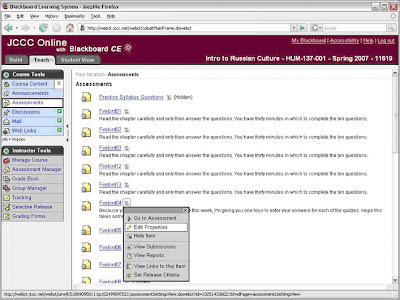
In order for notes or instructions regarding the assessment to show before the assessment is begun (on the Assessments page) enter them using the “Description” field (near the top of the assessment properties page) rather than the “Custom Instructions” field (at the bottom of the assessment properties page). Assessment properties are accessed by clicking the ActionLink icon and then selecting the Edit Properties option.
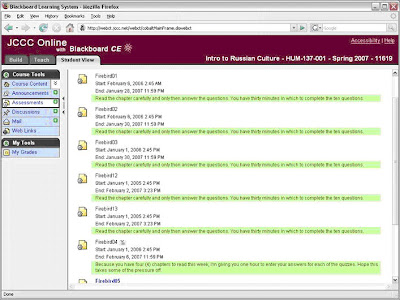
“Custom Instructions” appear inside the assessment (accented in green).
Blackboard CE’s “Custom Instructions” may be different than you initially expect. It’s easy to expect “Custom Instructions” to show up on the Assessments page before students begin assessments. The fact is, “Custom Instructions” don’t appear until the assessment is started.
In order for notes or instructions regarding the assessment to show before the assessment is begun (on the Assessments page) enter them using the “Description” field (near the top of the assessment properties page) rather than the “Custom Instructions” field (at the bottom of the assessment properties page). Assessment properties are accessed by clicking the ActionLink icon and then selecting the Edit Properties option.
“Custom Instructions” appear inside the assessment (accented in green).

The description appears on the Assessments page, outside the assessment or before the assessment is begun.
To enter either a Description or Custom Instructions select the Edit Properties option using the ActionLink icon.
The Description field is near the top and the Custom Instructions section is near the bottom.


Thanks to Davy Jones, Senior Analyst in the Educational Technology Center for this tip.
Friday, January 05, 2007
Editing Questions: What You Can and Cannot Do
In order to avoid confusion when using an assessment (e.g. to not change the question or possible answers):
- You can edit and alter answers to a question in an assessment prior to any student activity (e.g. before any student has taken the test, survey or quiz).
- You cannot change a question or it’s list of possible answers after students begin taking the assessment because the change may potentially cause answers that were correct before the change to become incorrect.
- You can alter the score for a question if it is found to be partially or totally incorrect.
For instance, if a question is worded incorrectly or the answers are listed incorrectly you can throw it out (make the score/points zero). If the question has already been made available to students and they have taken it; to change the wording or correct an answer would not be fair. Blackboard CE prevents these changes by only granting a "Save as new" (question) option so you can use the corrected question in future assessments.
Note: If you have a question that is used in an assessment and that question has been taken and saved by any student, you can no longer edit the question. You can edit and save it using a new name, but you cannot edit and replace the existing question. This applies even if the question is used in multiple assessments and it has been taken by any student in any one of those assessments.
Tuesday, January 02, 2007
Students Timing Out While Working on Assignments
Our JCCC Blackboard CE 6 server has a timeout setting to prevent an inactive “log-in” from consuming system resources (this also helps avoid hacking by a malicious party). The timeout is set to 70 minutes. If students are working online using the HTML Creator or entering text in a text box (e.g. in Discussions, Mail or Assignments) and do not interact with Blackboard for 70 minutes, they’ll be logged off the system automatically. Switching to another tab or saving a message or a posting in draft form re-starts the 70 minute cycle. It’s just when the student types in a text box or in the HTML Creator without using any other Blackboard features, that Blackboard will consider the account as inactive.
To avoid this problem, an alternative is for your students to compose their assignments in Microsoft Word (or another word processor) and then copy and paste the text into Blackboard. If you have your students submit their assignment as an attachment the timeout is usually not an issue.
If the student’s account “times out” before they finish the assignment, they’ll lose their work.
By the way, if a student is taking an assessment, the 70 minute cycle restarts each time an answer is saved or if the student moves from one question to another.
To avoid this problem, an alternative is for your students to compose their assignments in Microsoft Word (or another word processor) and then copy and paste the text into Blackboard. If you have your students submit their assignment as an attachment the timeout is usually not an issue.
If the student’s account “times out” before they finish the assignment, they’ll lose their work.
By the way, if a student is taking an assessment, the 70 minute cycle restarts each time an answer is saved or if the student moves from one question to another.
Wednesday, November 29, 2006
WebCT Good News/Bad News #2:
Here’s today’s installment of good news/bad news concerning CE 6.1.1:
CE 6.1.1 Good News – Assessments & Assignments
CE 6.1.1 Good News – Assessments & Assignments
- Assessments with embedded images copy satisfactorily from one CE 6.1.1 course shell (when you copy the entire course) to another CE 6.1.1 course shell.
- The histogram (report) for statistics now displays all scores.
- There is no longer a 1300 characters limit to comments in the Assignment tool…the limit is now 1333 characters. :-)
- An error is no longer generated when the cutoff date for an assignment is left blank because it no longer defaults to “blank.” You must enter a cutoff date, so the error cannot occur.
- Comments entered in Assignment Dropbox are automatically viewable in the student’s view of the Grade Book.
- Files attached to the Assignment tool can be replaced by a file of the same name and the old version no longer is displayed. This fixes a bug in 6.0.2.
CE 6.1.1 Bad News –Importing and Exporting Assessments
- When you export assessments from CE 6.1.1 with embedded images (using the HTML image tag, as opposed to the Browse button) and then try to import that assessment into another CE 6.1.1 course, the embedded images are not imported. In fact, the folder in which the images are stored in the source course shell is not copied to the target course shell.
Subscribe to:
Posts (Atom)