In Blackboard CE’s Assessment tool, you can create both “custom instructions” and an assessment “description.”
Blackboard CE’s “Custom Instructions” may be different than you initially expect. It’s easy to expect “Custom Instructions” to show up on the Assessments page before students begin assessments. The fact is, “Custom Instructions” don’t appear until the assessment is started.
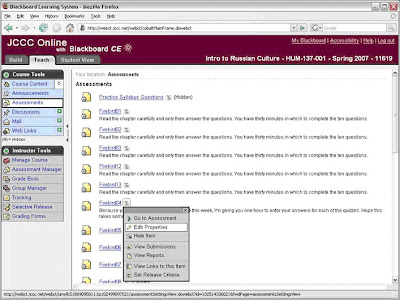
In order for notes or instructions regarding the assessment to show before the assessment is begun (on the Assessments page) enter them using the “Description” field (near the top of the assessment properties page) rather than the “Custom Instructions” field (at the bottom of the assessment properties page). Assessment properties are accessed by clicking the ActionLink icon and then selecting the Edit Properties option.
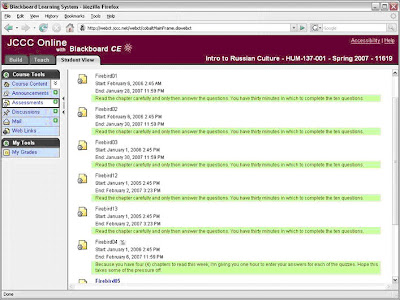
“Custom Instructions” appear inside the assessment (accented in green).
Blackboard CE’s “Custom Instructions” may be different than you initially expect. It’s easy to expect “Custom Instructions” to show up on the Assessments page before students begin assessments. The fact is, “Custom Instructions” don’t appear until the assessment is started.
In order for notes or instructions regarding the assessment to show before the assessment is begun (on the Assessments page) enter them using the “Description” field (near the top of the assessment properties page) rather than the “Custom Instructions” field (at the bottom of the assessment properties page). Assessment properties are accessed by clicking the ActionLink icon and then selecting the Edit Properties option.
“Custom Instructions” appear inside the assessment (accented in green).

The description appears on the Assessments page, outside the assessment or before the assessment is begun.
To enter either a Description or Custom Instructions select the Edit Properties option using the ActionLink icon.
The Description field is near the top and the Custom Instructions section is near the bottom.


Thanks to Davy Jones, Senior Analyst in the Educational Technology Center for this tip.


